
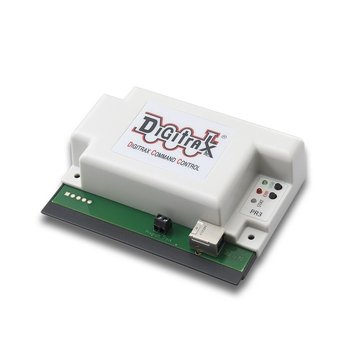
Digitrax has released a product called the "PR3 Xtra". This is simply a PR3 device plus a suitable power supply. It may be considered as "identical" to a PR3 for all practical purposes.
Digitrax introduced the DCS240 device in 2016. This command station includes an integrated PR3 device. For the purposes of JMRI, the DCS240 USB interface device is equivalent to a PR3.
When the PR3 is configured to act as a programmer, it is connected to a dedicated programming track via the screw terminals on the PR3. When JMRI is properly configured, JMRI can use the PR3 programming track to set CVs in any decoder that DecoderPro supports.
It can also be used to download sound information into Digitrax sound decoders and, within its limited current capability, run one locomotive to test it. When used with Digitrax SFX decoders, "neutral mode" allows you to vary the speed without the motor moving the decoder, so you can hear how the locomotive sound reacts to varying speeds.
Note that Digitrax only guarantees programming for Digitrax SFX decoders with properly installed loads, etc, but our testing has found that the PR3 will work with many common decoders.When acting as an interface, the PR3 allows JMRI to interact with devices connected to LocoNet. This includes programming decoders on a programming track attached to a LocoNet command station. Where the LocoNet command station supports "programming on the main", JMRI is able to make use of that feature.
The PR3 can also be used to connect JMRI to a "standalone LocoNet", which may be useful when LocoNet is used for some aspects of layout control while some other control system is use for other aspects. An example may be track occupancy detection and signaling using Digitrax BDL168 and SE8C boards while locomotive control is provided by a non-LocoNet DCC system. More information on this advanced topic is available on the "Standalone LocoNet" page.
For more information on the PR3 itself, please see the Digitrax PR3 page and the PR3 Support page.
See also PR3 Firmware issue which affects computers running Microsoft Windows below.
You don't need to install a separate driver when using current versions of Mac OS X or Linux.

To use the PR3 as an interface, connect a LocoNet cable to the LocoNet connector on the PR3. (Although not required, it's also OK to connect a power supply to the PR3). Finally, connect a USB cable between the PR3 and your computer.
To set up a JMRI application to use the PR3 as an interface to a LocoNet which includes a LocoNet command station:
DCS100
            (Chief)
", "DCS050 (Zephyr)", etc.
The "Stand-alone LocoNet" option should be selected if you don't have a command station connected; see the "Standalone LocoNet" page. In this case, the PR3 connection will not be able to program decoders.

To use the PR3 programming track, connect the PR3 to its power supply and to a dedicated piece of track which you'll use as the programming track. Finally, connect a USB cable between the PR3 and your computer.
The PR3 does not necessarily provide reliable readback of CVs for some decoders, including many sound decoders, when the power supply is a 12VDC or 14VDC power supply. Some users repot that using a 18 VDC regulated power supply enables them to reliably read sound decoder CVs via the PR3 programming track. Do this at your own risk! Current Digitrax documentation for the PR3 defines a maximum input voltage of 15 Volts DC, where previously the maximum voltage was listed as 20 Volts DC. Use of input voltages higher than 15 Volts DC could damage the PR3 hardware.
To set up a JMRI application to use the PR3 as a dedicated decoder programming track:
Command Station" option, select "PR3 Standalone
Programmer".You can use a JMRI throttle to control the locomotive connected to the PR3 Programmer. Use the JMRI Power Control or the "Power" menu item on the Throttle's menu bar to turn on track power, and then you can operate the locomotive normally.
The PR3 can only provide very limited current, so Digitrax has built a "neutral mode" into their sound decoders. When JMRI and the PR3 is running a Digitrax sound decoder, the motor is disconnected to reduce the current load. You can still ramp the speed up and down with the throttle and listen to how the sound responds, but the motor won't move the locomotive.
Other decoders, including decoders from other manufacturers, may draw enough motor current to trip the PR3 internal circuit breakers. This will cause JMRI to mark track power as "off". Just wait a couple seconds and turn the track power back on to recover.
If you are using the PR3 with a decoder that uses CV128 for something, you should either not use a JMRI throttle to run the locomotive on the PR3 programming track, or remember to rewrite CV128 with the right value just before removing the locomotive from the track.
Note that some PR3 devices do not behave well with JMRI when running on some versions of the Microsoft Windows computer operating systems. This problem has been seen by some some users of Windows 7 and Windows 8. These PR3s can cause erratic JMRI operation and can cause the JAVA interpreter to fail abnormally. Recovery from the issue may require re-starting JMRI or even require a true power-cycle for the computer, and this can resolve the problem until it happens again at some unpredictable future time. Note that a "hibernation" or "sleep" mode might not provide a temporary solution to the problem.
Digitrax has provided a PR3 firmware update which seems to resolve this issue. It may be applied by the user.
The appropriate update files and instructions are available from the "Download" page on the Digitrax website. Digitrax provides an application to apply the firmware update; the software package runs under Microsoft Operating Systems, and this is the strongly recommended way to apply the PR3 firmware update.
Alternatively, although not recommended for this case, JMRI provides a tool which can be used to update the PR3 firmware. The JMRI tool is not recommended for this case because the failure could happen during the JMRI firmware update process. If the failure happens during the PR3 firmware update process, it is possible that the PR3 might require factory repair.
LocoNet® is a registered trademark of Digitrax, Inc.